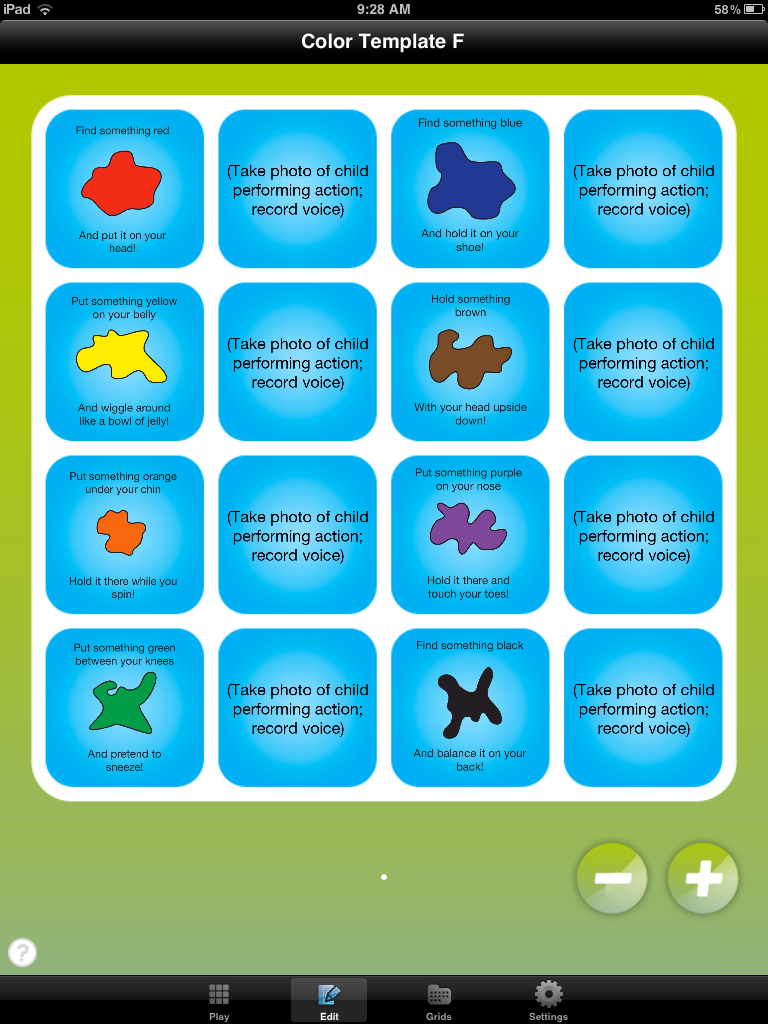
Check it out! Anyone who knows me knows that I LOVE the Tapikeo HD app! It is on sale today for 80% off it's usual price of $2.99 at the app store. You've gotta get this one if you don't have it already. Check out some of my earlier blog posts to see how I've used it and to download some free templates:
Template for In, On and Under
Movement Story Idea
Move and Talk Story Templates
Have fun!
Pam
May 18, 2012
May 17, 2012
App Review: Trucks HD by Duck Duck Moose
I just downloaded this app today and I can already tell it's going to be a winner! The name of this app is Trucks by Duck Duck Moose, creators of several of my favorite apps for little ones, and was just released on May 1, 2012. I am so glad I found it...and so was my three-year-old friend that I used it with this morning! Any truck-loving child is sure to be delighted with the colorful, appealing graphics and the actions the cars and trucks perform. It is easy to use and is very engaging.
The first thing you do is choose a scene. You can choose the car wash, the tow truck, the garbage truck, traffic or the construction site.
We chose the car wash, and this is what we saw:
First, you roll your car through the mud until it's nice and dirty.
Next, you take it through the car wash. Touch the brushes to make them wash the car.
Then touch the devices above the car to rinse it...
...and blow it dry. Your car is now clean and ready to roll! This activity was perfect for working on new words with my little friend with CAS. Words we practiced include mud, dirt, dirty, wash, water, on, off, brush, blow, clean and go. It was also great for following directions.
The construction site was next. The dump truck dumps dirt, rock or sand for the backhoe to scoop and take away. Watch out for a few sneaky squirrels who visit the site!
The last scene we tried today was the tow truck scene. We placed sharp objects in the road to pop the tires of unsuspecting cars and then sent a tow truck to help.
The tow truck brings the car to the tire shop, where we get to change the tires. We raise and lower the car by touching the arrows, and choose new tires by touching the tool.
I haven't tried the other two scenes yet, but I'm sure I'll be just as enchanted! This app was definitely worth the cost of $1.99. The activities generated lots of spontaneous language from my little friend who is just building his vocabulary and beginning to combine words. He was eager to imitate new words and excited to see what would happen next. We'll definitely be trying this activity again soon!
The first thing you do is choose a scene. You can choose the car wash, the tow truck, the garbage truck, traffic or the construction site.
We chose the car wash, and this is what we saw:
First, you roll your car through the mud until it's nice and dirty.
Next, you take it through the car wash. Touch the brushes to make them wash the car.
Then touch the devices above the car to rinse it...
...and blow it dry. Your car is now clean and ready to roll! This activity was perfect for working on new words with my little friend with CAS. Words we practiced include mud, dirt, dirty, wash, water, on, off, brush, blow, clean and go. It was also great for following directions.
The construction site was next. The dump truck dumps dirt, rock or sand for the backhoe to scoop and take away. Watch out for a few sneaky squirrels who visit the site!
The last scene we tried today was the tow truck scene. We placed sharp objects in the road to pop the tires of unsuspecting cars and then sent a tow truck to help.
The tow truck brings the car to the tire shop, where we get to change the tires. We raise and lower the car by touching the arrows, and choose new tires by touching the tool.
May 9, 2012
A Great Game for Practicing Final R Words
![]() |
| The spinner tells you where you can look; If you land on "Wave", you need to shake the game to mix up the hidden objects. |
![]() |
| Example of hidden objects once a panel is removed. |
here there near far somewhere there anywhere for or more
If we are at the sentence level, I have the student say a sentence including two location names and the object before he removes a panel. It might go like this: "Look near or far for a red fish." If he finds what he's looking for, he gets to look for more items in the same location, so I have him say, "Look for more." Sometimes I write out the target phrases/sentences on a card with the "r's" highlighted as a prompt to remember to say all those "r's" correctly.
This game can take up to 15 minutes to complete, but it provides numerous opportunities to practice those "r's". The kids request it repeatedly, so I know they like it, too!
Have fun!
Pam
May 8, 2012
Ideas for Home Projects Using Tapikeo HD App
I'll admit it...I just can't get enough of my Tapikeo HD app! I've been using it with my families for "homework" projects. Let me tell you how.
The first activity is one that I've been doing with my itty-bitties. It's called "Where's Mommy?" and I use it for working on family member names, vocabulary building, and early concepts. I also use it for my CAS kids at the VC level in the Kaufman program. I send them home with the instructions to take pictures of various family members demonstrating the concepts I want to teach, as well as close-up pictures of each family member. After I receive the photos from the family, I import them into a Tapikeo grid. I made a grid as a template, which you can download at the end of this post, to help me organize my story. This is what the grid looks like:
The words and the background color in each cell of the template disappear when a new photograph is added, so you can put a picture of Daddy in a cell that has a different family member's name and no one will ever know! As I said, the template is just to help me organize my story. You can add your own words to each cell by typing in the "text" box. My kids love this story, and it generates a TON of language.
If you would like to use this template, you can download it here:
The next idea I'd like to share is to make stories about individual concepts. Here is one Charlie and I made together. I made the orange slide using Microsoft Word and saved it as a PDF. I imported it to my iPad, and then used it as the first cell of a new story.
Then Charlie and I used objects around my office to demonstrate the concept of "between". I took photos of him directly from the app (as I've explained in earlier posts) and then recorded Charlie using the word "between" in a sentence.
We completed seven different examples of demonstrating "between" for this story, and then played it back. Charlie was so proud and really learned the concept well. I exported this story to his iPad at home, and asked him and his mom add to it using items from around his house. I can't wait to see what they add!
I made a generic "cover page" for this story that you can download here if you want to make one, too: My Story of "Between".
Another great idea: Charlie's mom purchased this app and promptly put it to use to work on his articulation skills. She knew we were working on the /l/ sound in the final position of words, so she and Charlie found objects around their house and made a story of Charlie saying words that end in /l/.
I hope you're using this app. It has so many amazing possibilities!
Nice chatting with you,
Pam
The first activity is one that I've been doing with my itty-bitties. It's called "Where's Mommy?" and I use it for working on family member names, vocabulary building, and early concepts. I also use it for my CAS kids at the VC level in the Kaufman program. I send them home with the instructions to take pictures of various family members demonstrating the concepts I want to teach, as well as close-up pictures of each family member. After I receive the photos from the family, I import them into a Tapikeo grid. I made a grid as a template, which you can download at the end of this post, to help me organize my story. This is what the grid looks like:
The words and the background color in each cell of the template disappear when a new photograph is added, so you can put a picture of Daddy in a cell that has a different family member's name and no one will ever know! As I said, the template is just to help me organize my story. You can add your own words to each cell by typing in the "text" box. My kids love this story, and it generates a TON of language.
If you would like to use this template, you can download it here:
The next idea I'd like to share is to make stories about individual concepts. Here is one Charlie and I made together. I made the orange slide using Microsoft Word and saved it as a PDF. I imported it to my iPad, and then used it as the first cell of a new story.
Then Charlie and I used objects around my office to demonstrate the concept of "between". I took photos of him directly from the app (as I've explained in earlier posts) and then recorded Charlie using the word "between" in a sentence.
| Press "new" to take a picture, then record voice. |
| Charlie said, "The bear is between my arms." |
We completed seven different examples of demonstrating "between" for this story, and then played it back. Charlie was so proud and really learned the concept well. I exported this story to his iPad at home, and asked him and his mom add to it using items from around his house. I can't wait to see what they add!
I made a generic "cover page" for this story that you can download here if you want to make one, too: My Story of "Between".
Another great idea: Charlie's mom purchased this app and promptly put it to use to work on his articulation skills. She knew we were working on the /l/ sound in the final position of words, so she and Charlie found objects around their house and made a story of Charlie saying words that end in /l/.
I hope you're using this app. It has so many amazing possibilities!
Nice chatting with you,
Pam
April 26, 2012
Is There a Doctor in the House?
| Feel Better Frog from Manhattan Toy |
To go along with this theme, I made a Patient Chart using Boardmaker. We talk about who the patient is, what happened to him, what we did to make him feel better, and what instructions we gave him to do at home. I help the child complete the chart by showing him a page of choices for each question on the chart. We review/name each of the choices and select one to put on the chart. When the chart is complete, I have the child tell about the patient he treated, using the chart as prompts.For example, the child might say, "Teddy Bear came to the doctor today. He fell off his bike and hurt his knee. I put a bandaid on it. I told him to go home and rest."
If you'd like to download my charts and choices, you can find them at these links: Chart Choices, Chart Choices 2 and Patient Chart. Sorry for the multiple downloading, but I posted these before knowing how to link PDF's together in one file. Oh well, they're free, right?
Another great way to work on sequencing, vocabulary and language skills is to make an interactive story of the child pretending to be a doctor using your iPad or iPhone. There are several great apps that allow you to take photographs within the app itself and then use them to create a story, but the one I used today was Stories 2 Learn by MDR. It's easy to use and a story can be completed quickly. Check it out in the App Store.
Just take a picture of the child using your iPad or iPhone, or import a photo from another camera. Add the text by typing in the text box, and audio if you desire. Save your page, and add another. Your story can be as long or as short as you want it! The pages of the story look like this:
Kids just love to be the stars of their own stories, and this is a great way for them to work on their speech/language skills, too!
Nice chatting with you!
Pam
April 17, 2012
Vroom! Vroom!
It's time to roll out the cars and trucks and things that go here at Small Talk! This month our theme is Community Helpers/Cars and Trucks. What better way to get started than pulling out the City rug and a bin full of vehicles?
I bought this rug at Home Depot many years ago and it still is a favorite with my preschool kiddos. It features roads that take you to many places in the city, including the hospital, police station, fire station and post office.
I made a "map" to help us get to all the places we need to go. I took pictures of all the destinations on the rug and then used Boardmaker to make cards for my map. I punched two holes in the top of each card and used metal rings to hold them together. We select a vehicle and a place to start on the rug, and then flip to the first page of our map book. We drive our vehicle to the place that matches the picture. This is where you get to be creative. Depending on the goals I'm working on, sometimes the child needs to answer a couple of questions about the place we're visiting, or sometimes I have him or her list three things they might see there. We always talk about who might work there, or what you might do if you were there. You can also work on negatives (ex. "This is not the post office"), and a whole host of other language concepts. I also use it to work on articulation skills by placing stacks of picture cards on each location and having the child say the target words before moving onto a new location.
![]() |
| I took individual pictures of the locations on the rug and imported them into Boardmaker cells to make the pages of the map book. |
![]() |
| An example of a city location and it's matching map card. |
If you have this rug and would like copies of my photographs, download them here:
Car Rug Destinations 1
Car Rug Destinations 2
Car Rug Destinations 3
Car Rug Destinations 1
Car Rug Destinations 2
Car Rug Destinations 3
Nice chatting with you!
Pam
April 10, 2012
Move and Talk: Story Templates for Tapikeo HD
Last month, I shared with you how I used the Tapikeo HD app to create an interactive activity in one of my treatment sessions. Many of you showed interest in that particular activity, so together with Takikeo's developer, Jean-Eudes Lepelletier, I created a couple of free templates for treatment activities to share with you. These templates have been made available on Jean-Eudes' website and Facebook page and right here on my blog!
The first is called Move and Talk: Colors. It is a little story that incorporates following directions, colors and movement, and can be customized to target specific speech and/or language goals. This is how I use it:
After downloading the grid from the server and opening it in my Tapikeo app, I am ready to make it my own. First, I find it in the "Your Exports" section of the Grid Manager. I select "Import", which moves a copy of the template to the "Your Grids" section of the Grid Manager. I select the template then go to Grid Settings to rename this story. Then I press "done" and am ready to create my story. Next, press "Select and Play, and then press "edit", which you will find at the bottom of the screen.
I show the child the first cell, and read the text. While the child finds a red object, I touch the second cell. (By the way, I usually collect objects of various colors beforehand and keep them in a large basket that is accessible to the child. This saves a bunch of time!) I touch the "new" button to take a picture of the child performing the action. This photo will become page 2 of our story and will replace the text or photo that appears in this cell as a template. I then ask the child to say a target word, phrase, or sentence, and record him or her saying it. For this example, the child said "Red on my head", because we were working on using the final /d/ sound. We play it back to review, and if we are satisfied, I touch "done", which takes us back to the main grid. I repeat this sequence for each of the colors in the story until it is completed.
When all the cells are completed, you are ready to play back your story. Touch "play" at the bottom of the screen, and touch the blinking cell in the upper left corner of the grid. That's it! Easy! And completed in less than 15 minutes.
The second story is one I use with my /r/ kids, to increase the level of difficulty while they practice saying target words in phrases and sentences. It is called Move and Talk: Final AR. This is what it looks like:
Use this template in the same way as described for the Move and Talk: Color story, except record the child saying the target phrase or sentence as directed in the story.
So what do you think? Do you like these? If so, you can download one or both of them here (once you purchase the Tapikeo HD app):
Move and Talk: Colors
.tpk file: http://bit.ly/MoveWithColorsTpk
web version: http://bit.ly/MoveWithColorsInternet
Move and Talk: Final AR
.tpk file: http://bit.ly/MoveTalkFinalAR_Tpk
web version: http://bit.ly/MoveAndTakFinalAR_Web
If you don't already have the Tapikeo HD app, now is a great time to get it, because the 3.0 version is just being released. You can purchase it through the App Store today!
The first is called Move and Talk: Colors. It is a little story that incorporates following directions, colors and movement, and can be customized to target specific speech and/or language goals. This is how I use it:
| Move and Talk: Colors Template as it appears when you download it onto Tapikeo HD |
After downloading the grid from the server and opening it in my Tapikeo app, I am ready to make it my own. First, I find it in the "Your Exports" section of the Grid Manager. I select "Import", which moves a copy of the template to the "Your Grids" section of the Grid Manager. I select the template then go to Grid Settings to rename this story. Then I press "done" and am ready to create my story. Next, press "Select and Play, and then press "edit", which you will find at the bottom of the screen.
| Cell 2 - Customization |
| Cell 1 - Direction for the Child |
I show the child the first cell, and read the text. While the child finds a red object, I touch the second cell. (By the way, I usually collect objects of various colors beforehand and keep them in a large basket that is accessible to the child. This saves a bunch of time!) I touch the "new" button to take a picture of the child performing the action. This photo will become page 2 of our story and will replace the text or photo that appears in this cell as a template. I then ask the child to say a target word, phrase, or sentence, and record him or her saying it. For this example, the child said "Red on my head", because we were working on using the final /d/ sound. We play it back to review, and if we are satisfied, I touch "done", which takes us back to the main grid. I repeat this sequence for each of the colors in the story until it is completed.
| Example of a template cell in Play Mode |
| Example of a customized cell in Play Mode |
When all the cells are completed, you are ready to play back your story. Touch "play" at the bottom of the screen, and touch the blinking cell in the upper left corner of the grid. That's it! Easy! And completed in less than 15 minutes.
The second story is one I use with my /r/ kids, to increase the level of difficulty while they practice saying target words in phrases and sentences. It is called Move and Talk: Final AR. This is what it looks like:
| Move and Talk: Final AR Template |
| Move and Talk: Final AR grid with photos added |
| Template text disappears when you add a photo to the grid; Add your own text by typing it in during the customization process. |
Move and Talk: Colors
.tpk file: http://bit.ly/MoveWithColorsTpk
web version: http://bit.ly/MoveWithColorsInternet
Move and Talk: Final AR
.tpk file: http://bit.ly/MoveTalkFinalAR_Tpk
web version: http://bit.ly/MoveAndTakFinalAR_Web
If you don't already have the Tapikeo HD app, now is a great time to get it, because the 3.0 version is just being released. You can purchase it through the App Store today!
I'd love your feedback on these templates. I've been enjoying using them with my kids, and their parents absolutely love them! I've got some other ideas in the works too; let me know if you want me to share them.
By the way, can you tell I just love Tapikeo HD? It can be used SO MANY different ways with every child and family on my caseload. The possibilities are endless! A HUGE thanks to Jean-Eudes for creating this fabulous treatment tool!
Nice chatting with you!
Pam
By the way, can you tell I just love Tapikeo HD? It can be used SO MANY different ways with every child and family on my caseload. The possibilities are endless! A HUGE thanks to Jean-Eudes for creating this fabulous treatment tool!
Nice chatting with you!
Pam
Subscribe to:
Posts (Atom)